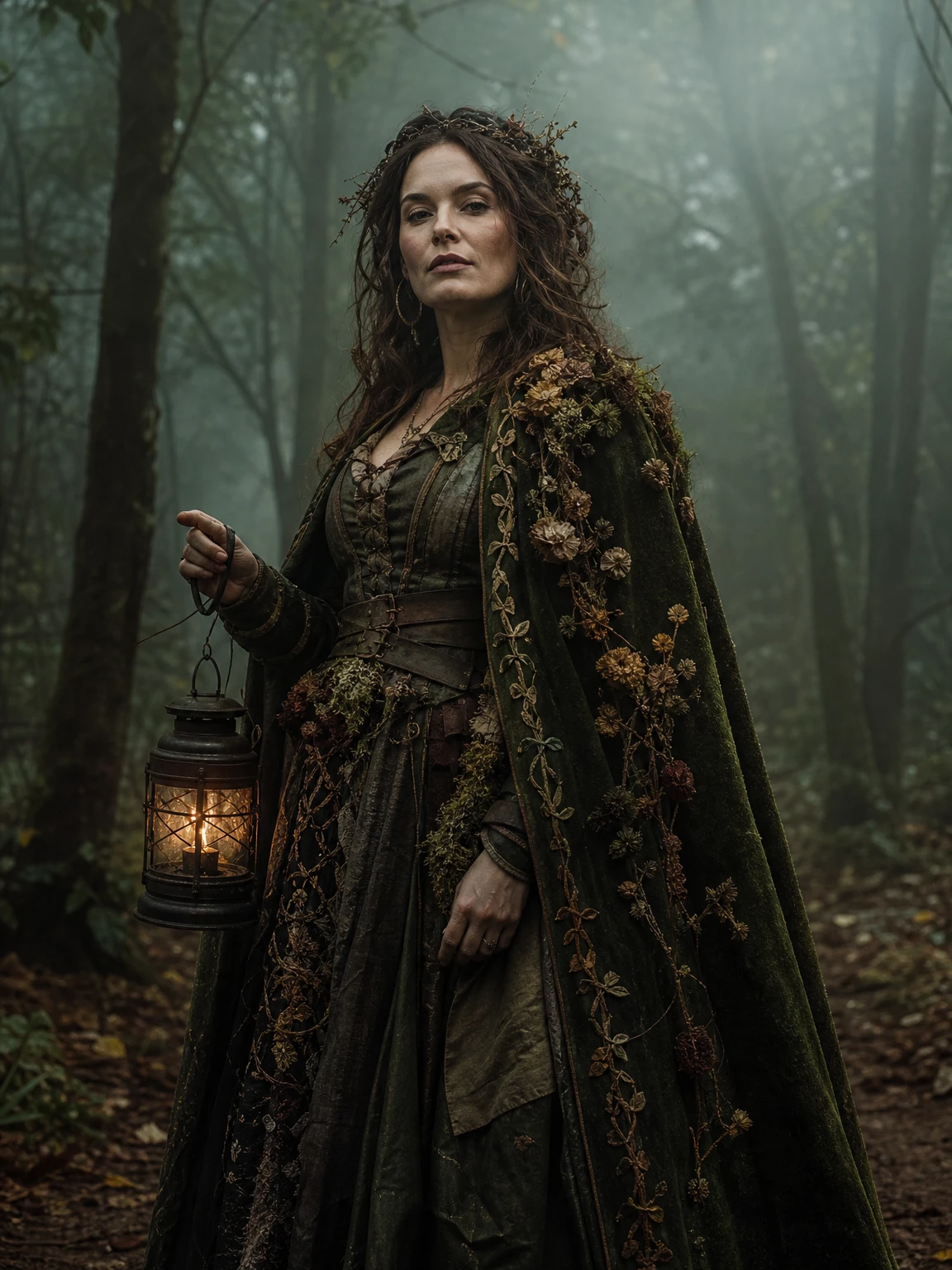
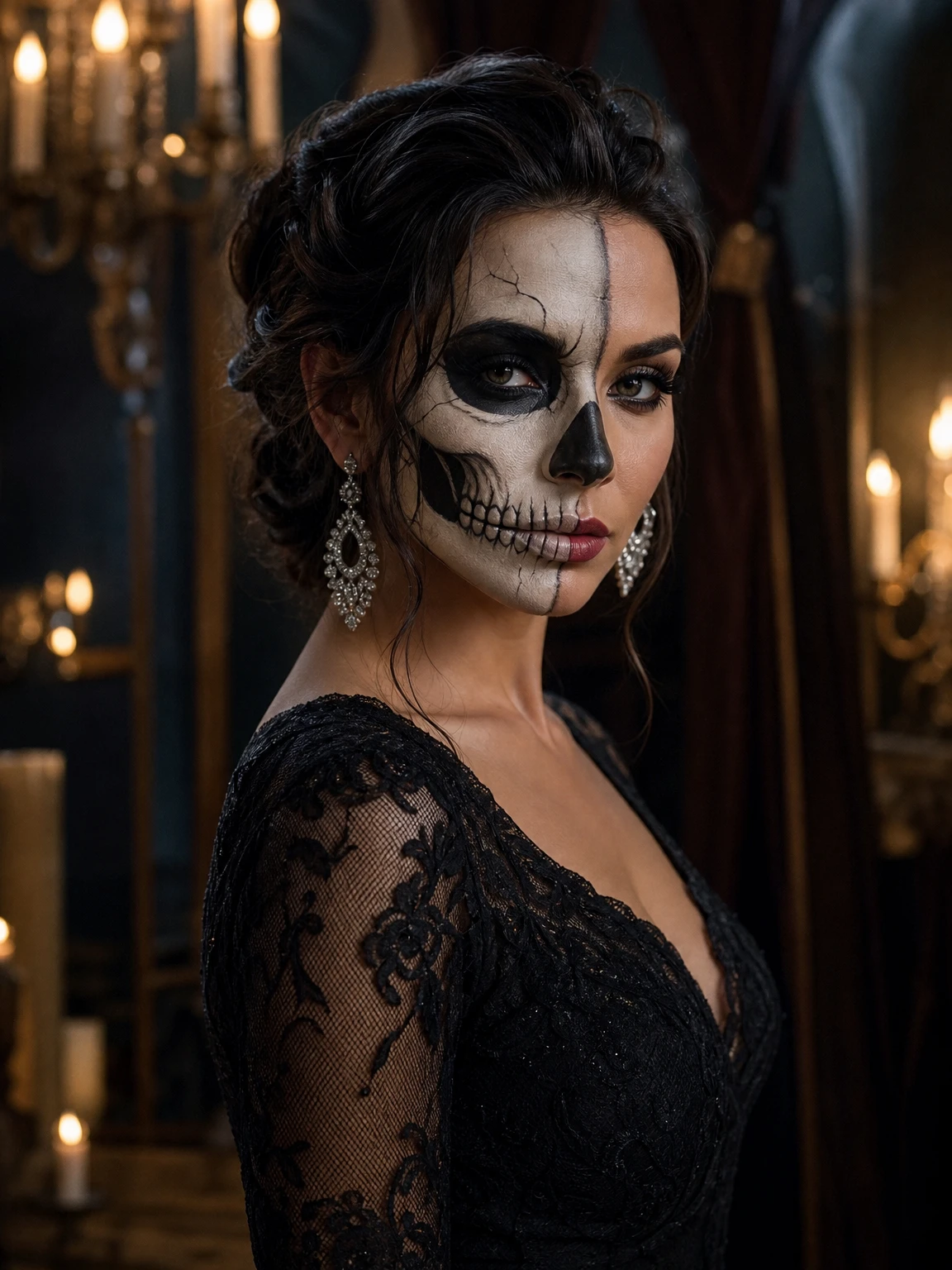
A Fergie Baby AI guide
AI Halloween Costume Generator: A Photo-to-Look Guide
 Fergie Baby AI Team
How an AI Halloween costume generator actually works, what it changes, what it keeps, and how to get a portrait that still looks like you.
Try it here
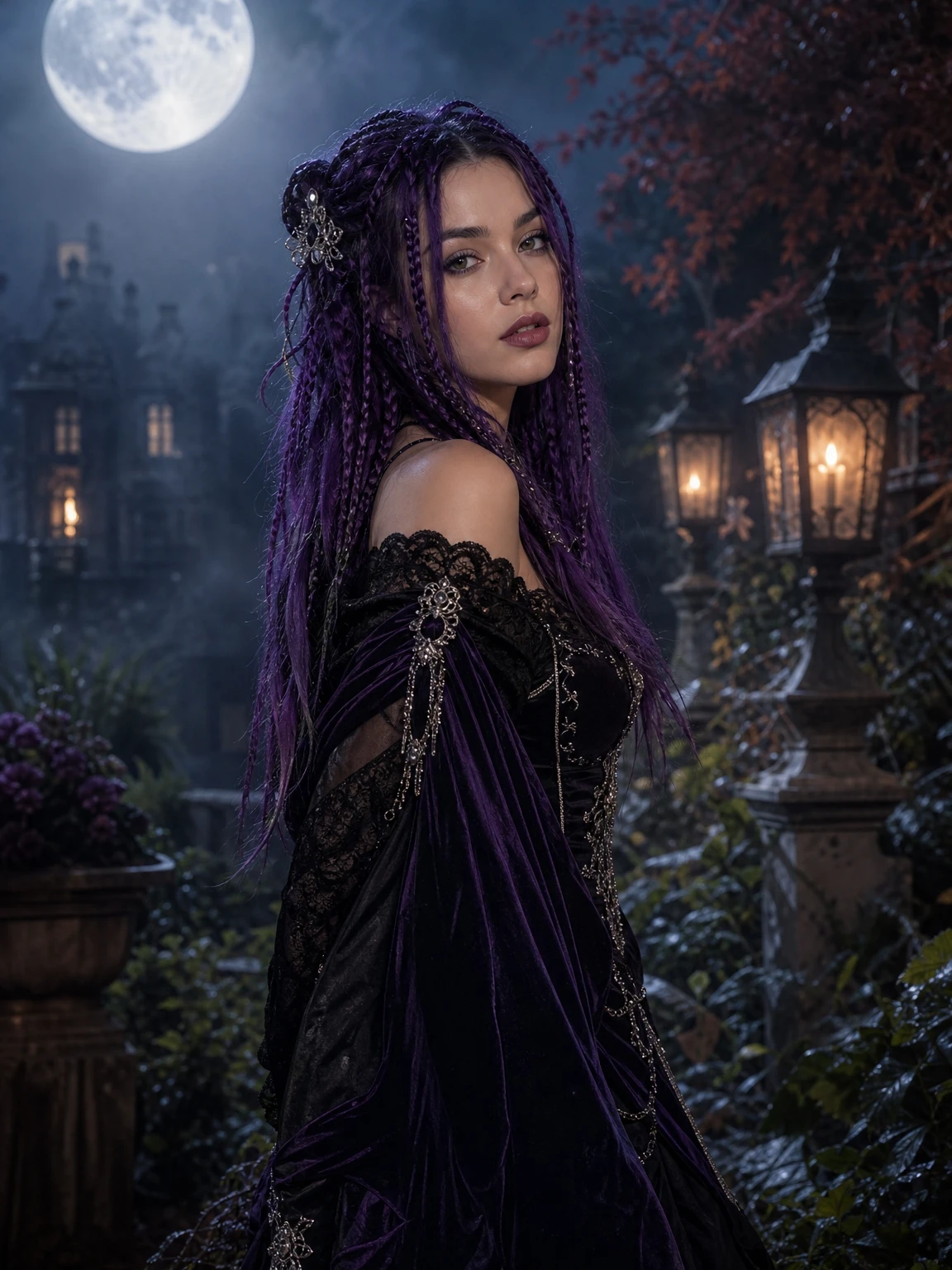
Midnight Braids, from your own photo
The look this guide describes is the generator below. Make a still first, then decide whether you want the video.
A Halloween costume is a strange thing to shop for online. You know the shape you want, but the photo on the product page is a model, the fit is a guess, and the version that arrives is usually thinner, shinier and less comfortable than the one in your head. An AI Halloween costume generator skips the parcel entirely. It takes a photo you already have and rebuilds the costume around your face.
That sounds simple. The hard part is making it look like a costume portrait rather than a stranger wearing a costume. This guide is about that difference: what the tool changes, what it must keep, and how to give it a photo it can actually use.
What an AI costume generator is doing
Most people imagine a text box: type "sexy vampire" and receive a picture. That is text-to-image. It is useful for moodboards and terrible for a portrait of you, because the model has no idea what your face looks like.
A photo-based costume generator works differently. You upload one image as a reference. The model reads the face, skin tone, approximate age, body proportions and pose. Then it follows a prompt that changes the costume, hair, makeup and background while asking it to preserve the person. The output is a new image, not a filtered version of the old one.
That is why the quality of the source photo matters more than the length of the prompt. A model cannot preserve a face it can barely see.
What changes, and what stays
A good costume preset should be explicit about both lists.
What changes:
- The outfit, including fabric, cut and accessories.
- Hair colour, length or style when the look calls for it.
- Makeup, especially for beauty-led looks such as skeleton glam.
- The background, lighting and colour palette.
- The pose only when the new costume needs it.
What stays:
- Facial identity: face shape, eyes, nose, mouth and skin tone.
- Approximate age and body proportions.
- The number of people in the photo.
- The overall expression, unless the look explicitly changes it.
If a result loses the face, the costume is irrelevant. The first job is recognition; the second job is atmosphere.
The six-step workflow
- Pick a direction, not a keyword. "Halloween" is too broad. Choose a silhouette: violet braids and velvet, a cosmic gown, a forest cloak, ivory-and-charcoal skeleton makeup. The silhouette is what the model can actually draw.
- Choose a photo with a readable face. Front or slight three-quarter view, even light, no sunglasses, no hat brim over the eyes. A knees-up or full-body frame gives the model more body to dress.
- Generate the still first. A still is the cheapest test. If the face drifts or the costume reads badly, you have lost two credits, not a video render.
- Inspect at full size. Check the eyes, hands, hairline and the edge where the costume meets the background. Small errors are easier to catch before you animate anything.
- Animate only if the still is strong. The 12-second walk works best when the costume has a clear silhouette. A detailed still with a weak silhouette will not become a better video.
- Post with the platform sound. The clip is silent on purpose. Add the trend audio inside TikTok, Reels or Shorts so the credit stays with the audio owner.
What makes a photo usable
The model is not a forensic tool. It works from visible evidence. A photo taken from across a room gives it a tiny face and a lot of room; a photo taken at arm's length gives it a face it can preserve.
Use these rules:
- One person. Group photos produce extra faces or bodies.
- Face unobstructed. No sunglasses, no mask, no hair covering the eyes.
- Natural light or a soft front light. Hard shadows across the face make identity preservation harder.
- A clean background helps, but it is not mandatory. The background is replaced anyway.
- Avoid heavy beauty filters. They remove the texture the model uses to keep the face consistent.
- Keep the original resolution. Screenshots of screenshots lose detail.
The prompt, and why the boring lines matter
Here is the actual direction behind the Midnight Braids preset:
Use the uploaded photo as the primary reference. Preserve the subject's
recognizable facial identity, facial proportions, skin tone, approximate age
and natural anatomy. Change the hairstyle into long violet braids with silver
hair accessories. Replace the clothing with an elegant black-and-purple velvet
outfit with lace and metallic details. Place the subject in a moonlit Victorian
garden with soft fog. Photorealistic editorial photography. Keep the same number
of people. Avoid altered facial identity, extra limbs, duplicated fingers,
distorted anatomy, text, logos and watermarks.
The costume description is the fun part. The preservation and avoidance lines are the useful part. "Preserve facial identity" tells the model what not to touch. "Keep the same number of people" prevents a second character from appearing. "Avoid duplicated fingers" is not decoration; hands are one of the most common failure points in image editing.
If you copy a prompt into another tool, keep those lines. Changing the colour of the velvet is safe. Deleting the constraints is how you get a beautiful image of someone else.
Still or video?
A still is 2 credits. A 12-second walk video is 10 credits at 480p or 30 at 1080p. New accounts get 10 welcome credits, which covers five stills or one 480p clip.
The still is the better first purchase for three reasons:
- It is cheaper to iterate.
- It tells you whether the face and costume are working.
- It is easier to post as a portrait, a story or a profile image.
The video is an extension, not a replacement. The engine copies a reference walk and puts your face in it. It is a costume walk, not a custom film scene. If that is the format you want, the still is the best storyboard you can give it.
Common failures and the fix
The face looks like a cousin, not you. The photo was too small, too filtered or too shadowed. Try a closer, sharper photo before changing the prompt.
The costume became a generic dress. The prompt was too vague. "Black dress" gives the model freedom; "black velvet with lace and metallic trim" gives it constraints.
There are extra hands or a second person. The source photo had more than one person, or the prompt did not say "one person only". Use a solo photo.
The background swallowed the silhouette. A busy background can compete with the costume. The preset replaces the background, but a strong source silhouette still helps.
The result looks like a painting, not a photo. Add "photorealistic editorial photography, natural skin texture" and avoid words like "illustration" or "cartoon".
Consent and privacy
Use your own photo, or a photo of someone who has explicitly agreed. Do not upload a stranger, a celebrity or a child. Do not imply that a real brand, film or artist endorsed the result. If you post the image, follow the platform's AI-label rules.
The photo is used to render the image. It is stored under an unguessable name and is not shown publicly. If you want it deleted, ask support.
The honest summary
An AI Halloween costume generator is not a costume shop and not a photographer. It is a fast way to see a direction on your own face. The best results come from a clear photo, a specific look and a willingness to iterate on the photo rather than the prompt.
Start with the AI Halloween costume generator, pick one of the six directions, and make a still before you spend on video. If you want the exact prompts, the Halloween AI prompts page has eight of them, ready to copy.